SMEDNA Partner Guide
Want every step in full detail, with real screenshots and API examples? Read the complete partner guide.
Open the full guide's contentsStart here
You resell SMEDNA to the shops in your network under a set of menus and fields of your own, called an Edition. Every shop runs the same app, so you can adjust it yourself without writing code, and when SMEDNA updates the system every shop gets the update at the same time.
Overview: who does what
SMEDNA opens your account first. Then you set up your Edition, your sales staff open shops, and the shops start using it. Once a shop is open, three more jobs follow.
- 1SMEDNA team
SMEDNA opens the partner account
Signs the contract and records the DPA signing date · sets the wholesale price of each plan · adds the people on your team, both owners and sales staff
- 2Partner
You set up your Edition
Choose the menus shops will see · add your own fields, such as "Regular pickup day" · press "Review impact, then publish"
- 3Partner
Sales opens shops for customers
In the "New shop" menu, enter the shop name and the owner's email, and choose the Edition, plan and shop type. Then send the invite link to the shop owner, or send the "Free-trial link" from the Overview page so the shop signs up by itself.
- 4Shop
The shop uses it
The shop sees the menus and fields from your Edition · the shop's data belongs to the shop
When you edit your Edition
An Edition always has two versions: the one you are editing and the one shops are using. Shops get the new version only when you press publish.
- 1Partner
Edit in Studio
Save as often as you like. Shops keep seeing the old version in the meantime.
- 2Partner
See the impact
Press "Review impact, then publish". The system tells you how many shops will change.
- 3Partner
Publish
Send it to every shop, or to the trial shops first.
- 4Shop
Shops see the new version
Shops don't have to do anything. It can take about half a minute.
How far you can customize
Edition Studio changes much more than fields. There are 9 things you can do yourself today, with no code, grouped into 4 cards below. All of it is in "Editions" (/partner/editions): open your Edition.
Flow: open /partner/editions · pick a blueprint or an existing Edition · edit by tab · preview and check impact · publish to beta · move to stable when sure
Look and brand
You can do this todayThe "Brand/Theme" tab sets the product name, logo, colour or a ready theme · the "Wording" tab renames on-screen words, per language
Changes display only, not how the system works
Menus and features
You can do this todayThe "Capabilities" tab removes features the shop doesn't need · the "Menu" tab hides or pins menu items · the "wizard" tab sets first-run steps, each a labelled link to an existing page · the "Guide" tab chooses which guide chapters show
You can only narrow, never go beyond the plan and shop type · some basic menus can't be hidden · hiding is display only, not a permission
Add fields to existing forms
You can do this todayThe "Fields" tab: press "Add a customer field" or "Add a product field" · set the shop-facing name, field code and type
Only on the customer and product pages · up to 20 fields per page · 5 field types: text, number, date, choice and checkbox · the system won't let you create fields for sensitive data, such as national ID numbers, health data, fingerprints or faces
Start and publish safely
You can do this todayStart from one of 132 blueprints, or copy an existing Edition in the blueprint picker · keep a draft, preview, check impact before publishing · release to beta first, then stable · roll back to an earlier revision
Once published, shops see it right away, so check impact every time
A brand-new feature SMEDNA doesn't have yet
There are three routes. Choose by the kind of work.
Your own system + Partner API
Suits back-office work for your network, such as network-wide sales summaries or a CRM · read shops, customers and sales · create new customers if the key has write access · receiving webhooks needs a programmer on your side
Extension
Create new kinds of data and forms that appear in the shop's app, such as a delivery-round table · AI helps draft it and you approve it before use · the shop installs it and gives consent itself
Ask SMEDNA to build it into the core
Work that touches money, stock, receipts, tax or the sell screen has to be built into the core to stay correct · once it's done, every partner can switch it on through an Edition
Read on: the full partner guide, with a screenshot of every step and real API and webhook examples.
Open the full guide with screenshotsFor the SMEDNA team
Open a partner account and set its guard rails: the plan ceiling, the legal gates, and the API key policy.
Set what a plan may sell

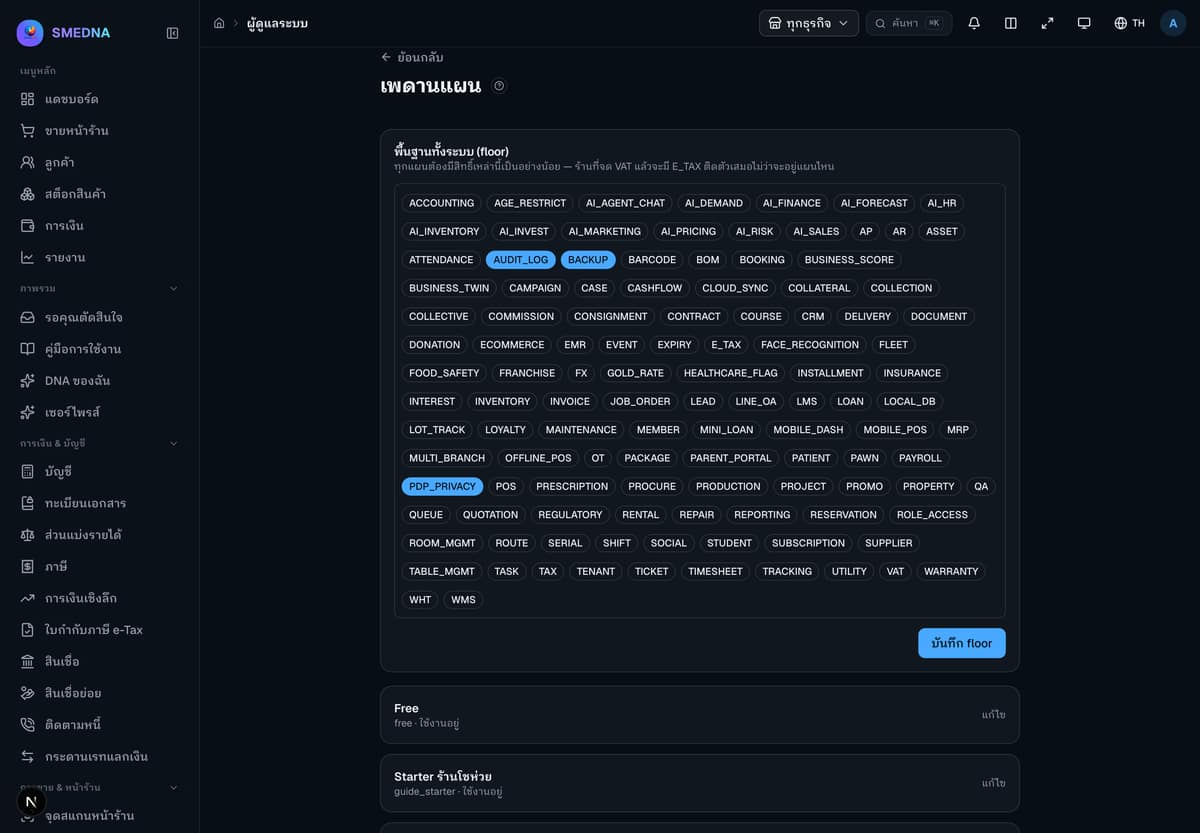
- Every plan has a ceiling — the most capabilities a shop on that plan can ever use — and a floor every plan must include no matter what.
- A VAT-registered shop always keeps E_TAX whatever plan it is on, so a downgrade never takes it away.
- Removing a capability and saving first shows how many shops would lose it, and asks you to confirm before anything changes.
Legal gates for partner data

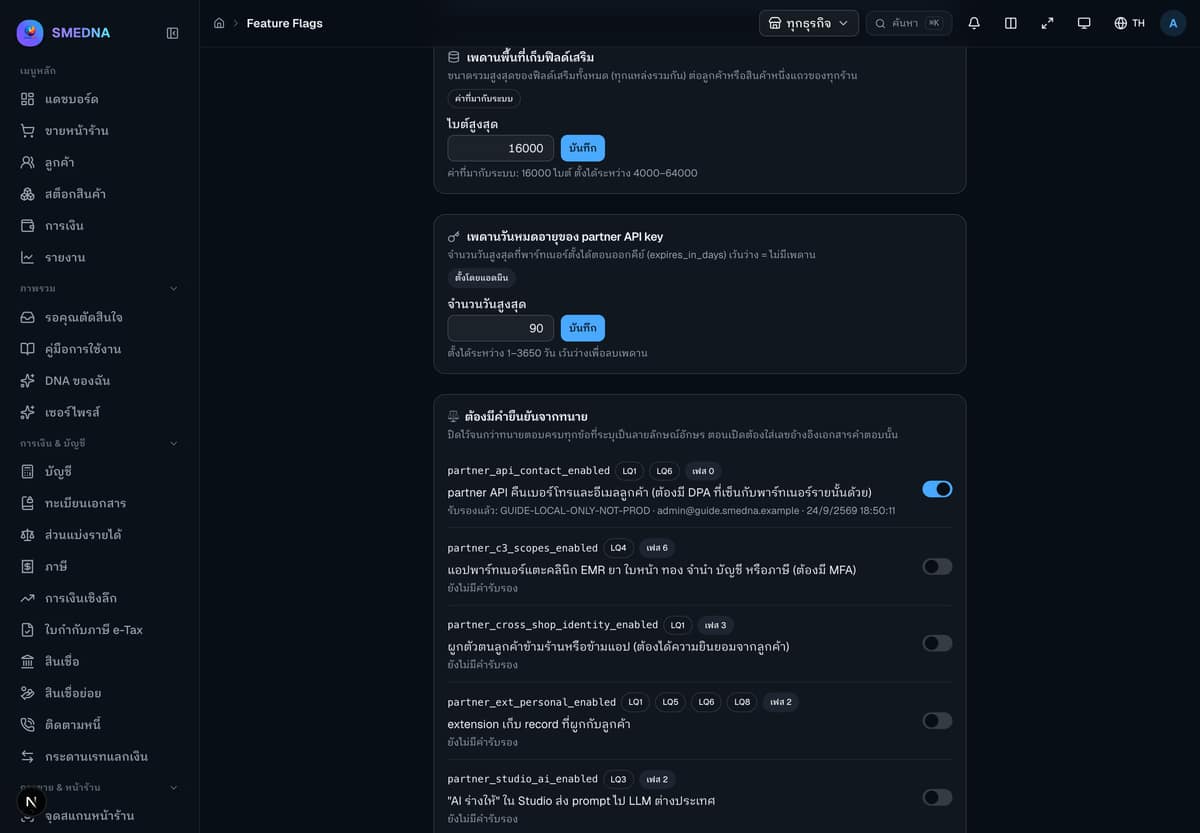
- Anything that needs a lawyer's sign-off first — like letting a reseller's CRM read a shop's customer phone number — is its own flag, off by default.
- Turning one on asks for the reference number of the legal answer that allows it; there is no way around that box.
- On production today all six are off. The one signed switch in this screenshot was turned on only on the internal test machine used for this guide.
How long a partner's API key may live

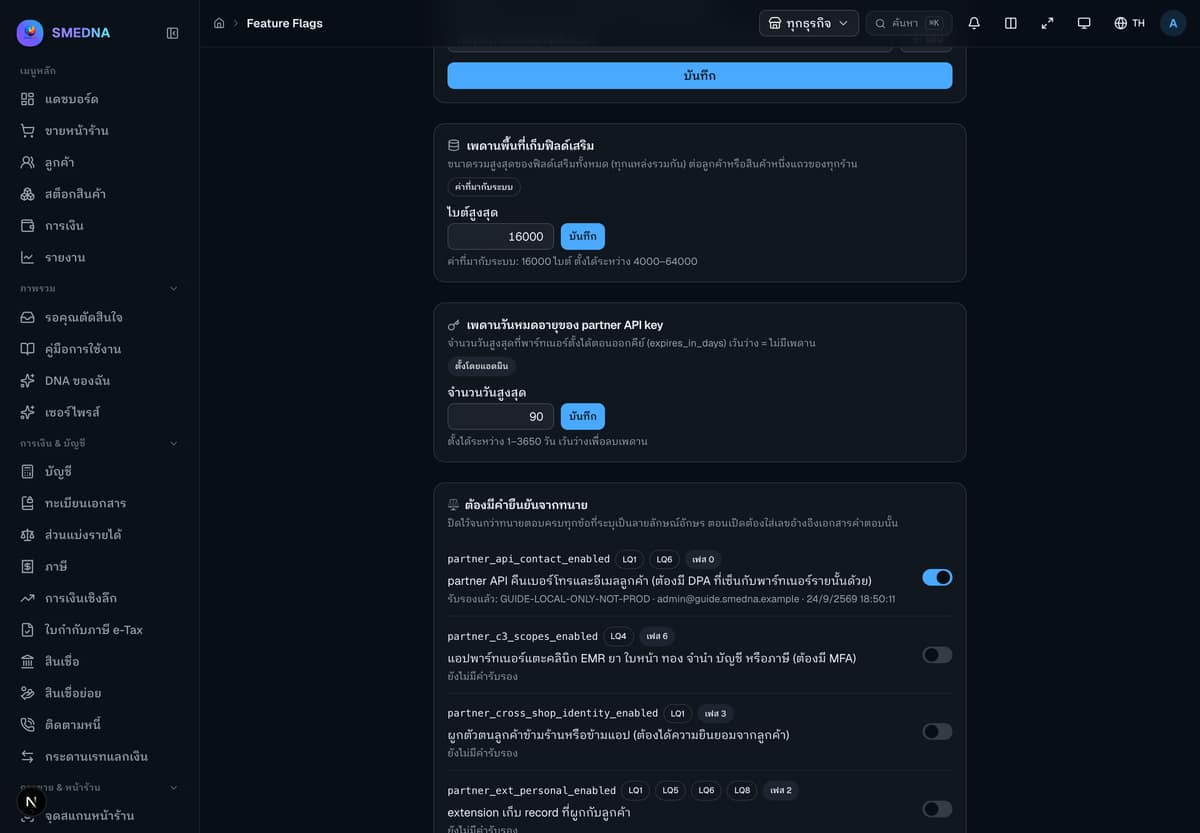
- One estate-wide setting caps the expiry every new Partner API key may ask for — 90 days in this guide.
- A reseller can still issue a shorter-lived key any time; they just can't ask for longer than the cap.
- Lowering the cap does not shorten keys already issued — step P08 of the full guide shows what a partner sees when they ask for too much.
For the reseller
Your console: the shops you sell, the Edition you publish to them, and the API keys and webhook your systems use.
Your console at a glance

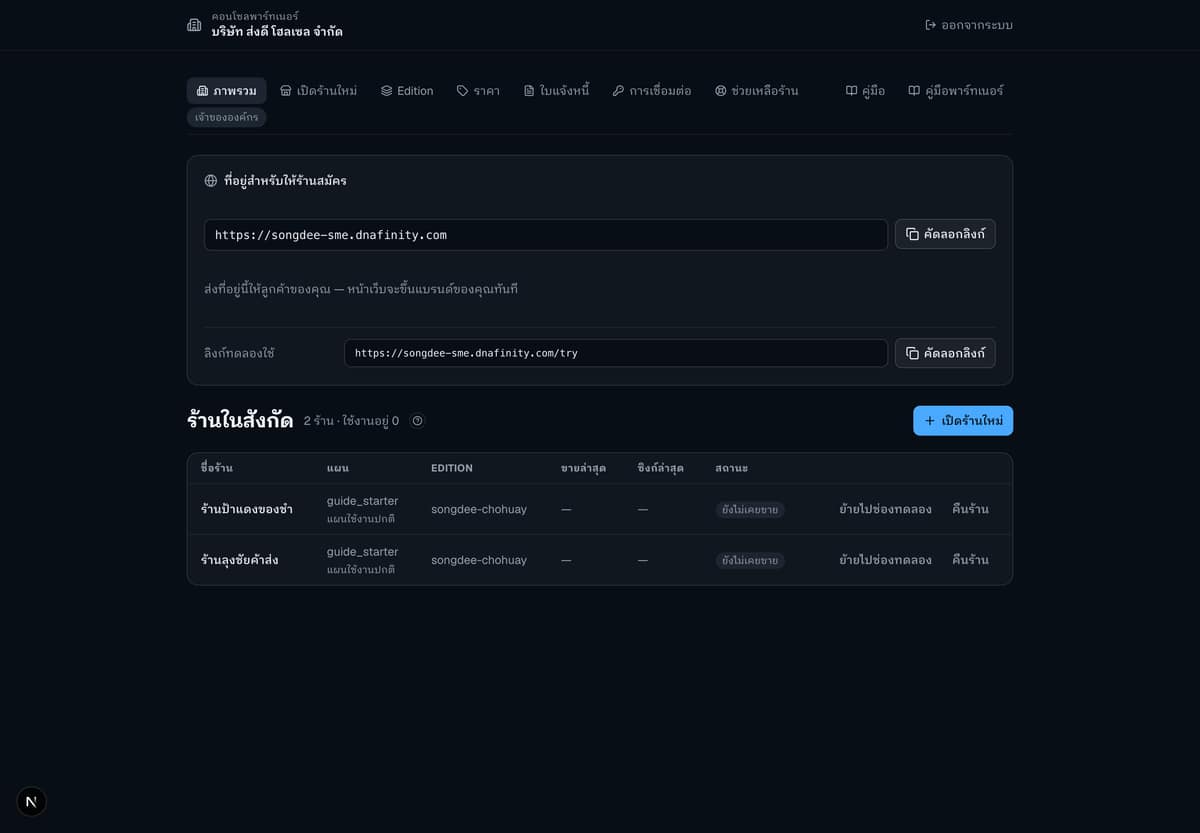
- One page lists every shop still under your partnership.
- A shop you hand back leaves this list straight away, so the list only shows the shops you still support.
- Every tab a reseller needs — new shop, Editions, pricing, invoices, integrations, support — starts from this page.
See who's affected before you publish

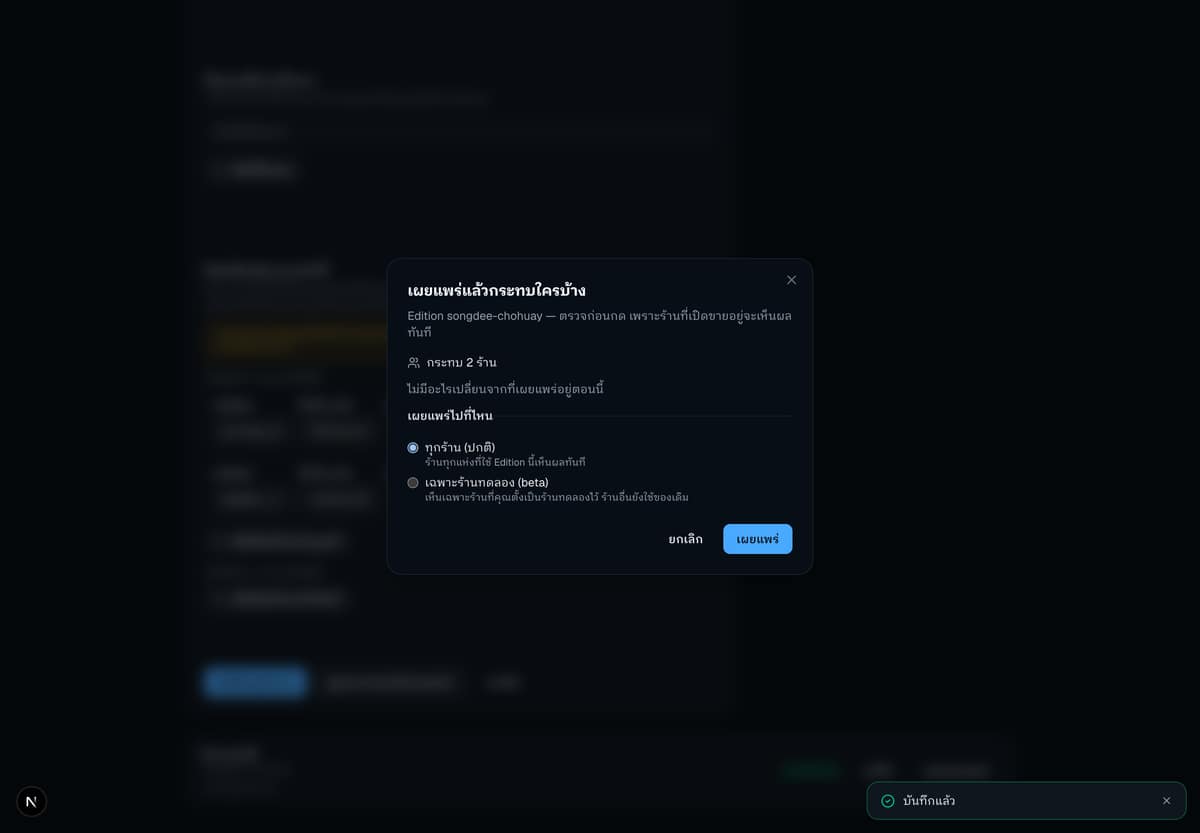
- Publishing an Edition change reaches every shop already selling under it, so the button opens a preview first.
- The preview counts the shops on this Edition right now, before anything actually changes.
- Nothing is final at this screen — you can still cancel and adjust the Edition before publishing for real.
Where your systems connect in

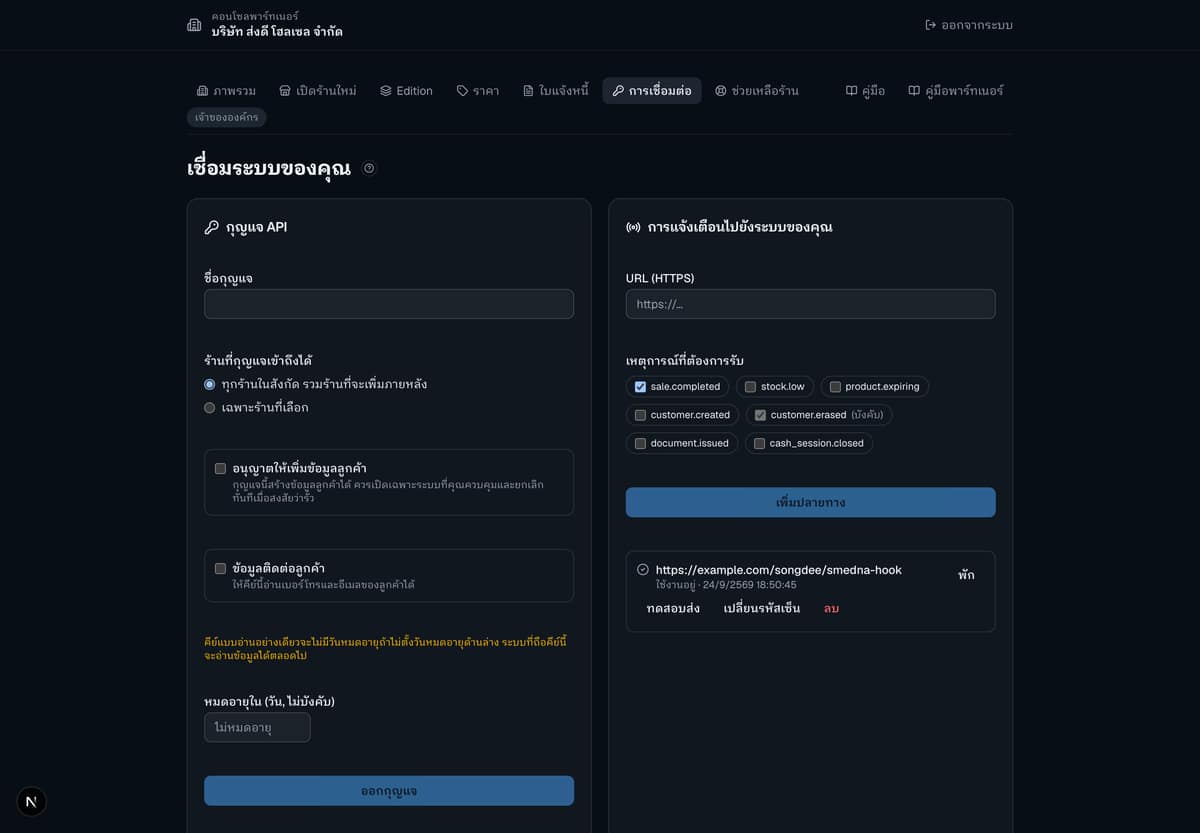
- Every API key you've issued, the webhook you receive shop events on, and a log of what was actually delivered — all on one page.
- A delivery log entry marked delivered means the receiving system answered with a 2xx success code — not just that SMEDNA tried.
- An expired key still shows here, so you can tell at a glance which of your systems needs a fresh one.
Issue a new API key

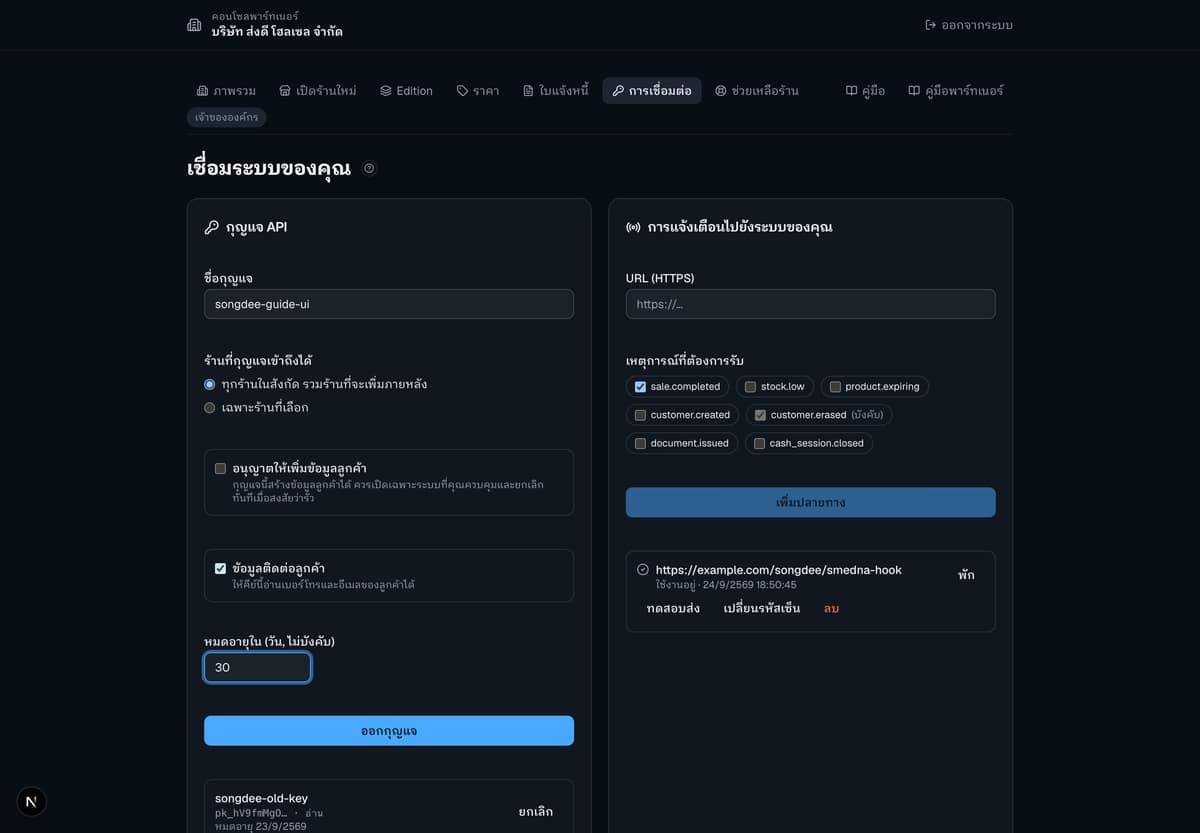
- Name the key, choose whether it may read customer contact info, and set how many days it lives.
- The plaintext key is shown exactly once, right after creation — copy it immediately, because SMEDNA never stores or shows it again.
- The customer-contact box can only be ticked once your organisation has signed its data processing agreement (DPA); until then it is locked, with the reason shown.
When a shop leaves

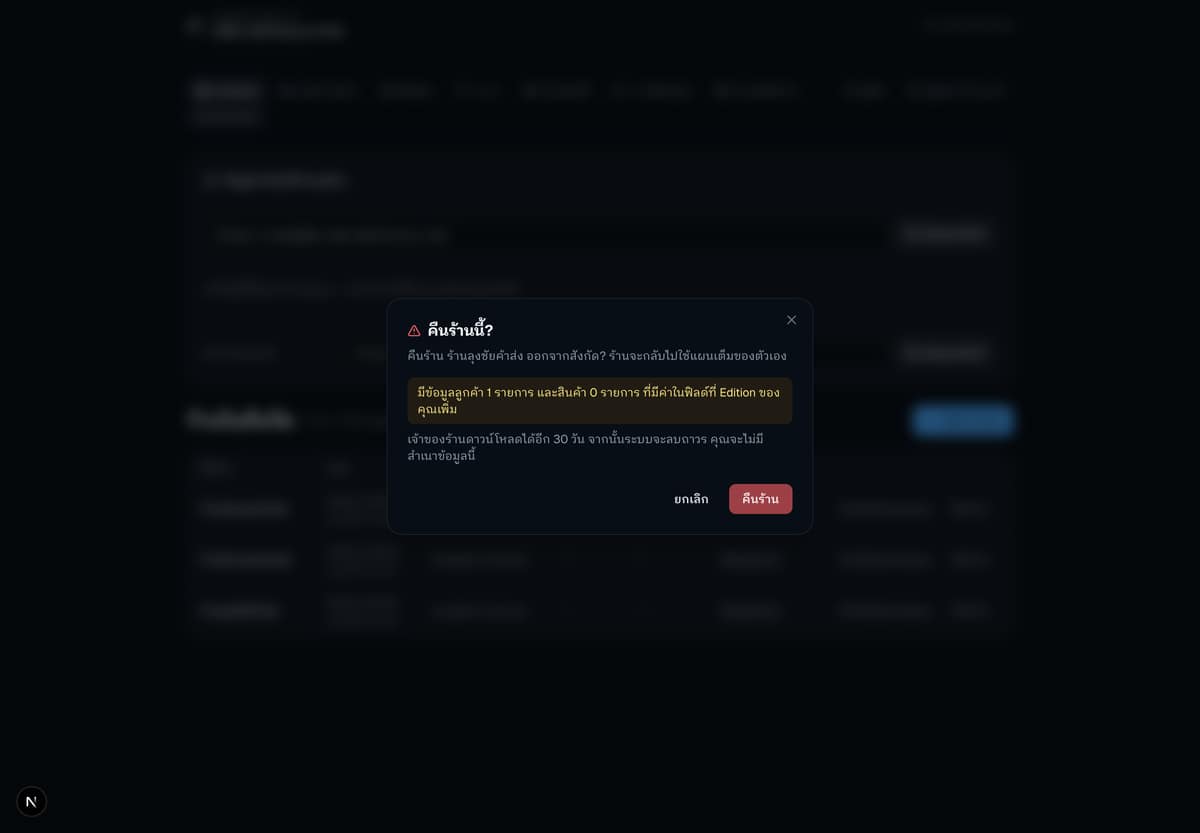
- Handing a shop back removes it from your partnership straight away, but the values your Edition's fields hold on its customers and products don't disappear immediately.
- The dialog states exactly how many customer and product rows carry your Edition's values, and how many days the shop owner still has to export them.
- After that window the data is deleted for good (once the platform turns automatic deletion on), and you keep no copy of it.
For developers
Real request and response examples for the Partner API and webhooks — signatures, scopes and error codes included.
Real API and webhook examples
Open the full guide's contents- Every example is a real captured request and response (sensitive values redacted) — the me, businesses, customer and key endpoints, with actual status and reason codes.
- Both webhook events are shown as the receiving server actually saw them, including the signature header and how to verify it.
- Full detail — including the exact HMAC recipe — is in the developer chapter of the guide book.
Build an extension and automatic rules
Partners build extensions in Studio without writing code: the data a shop keeps, the rules that run by themselves, and the hand-off to SMEDNA for review.
The data the shop will keep

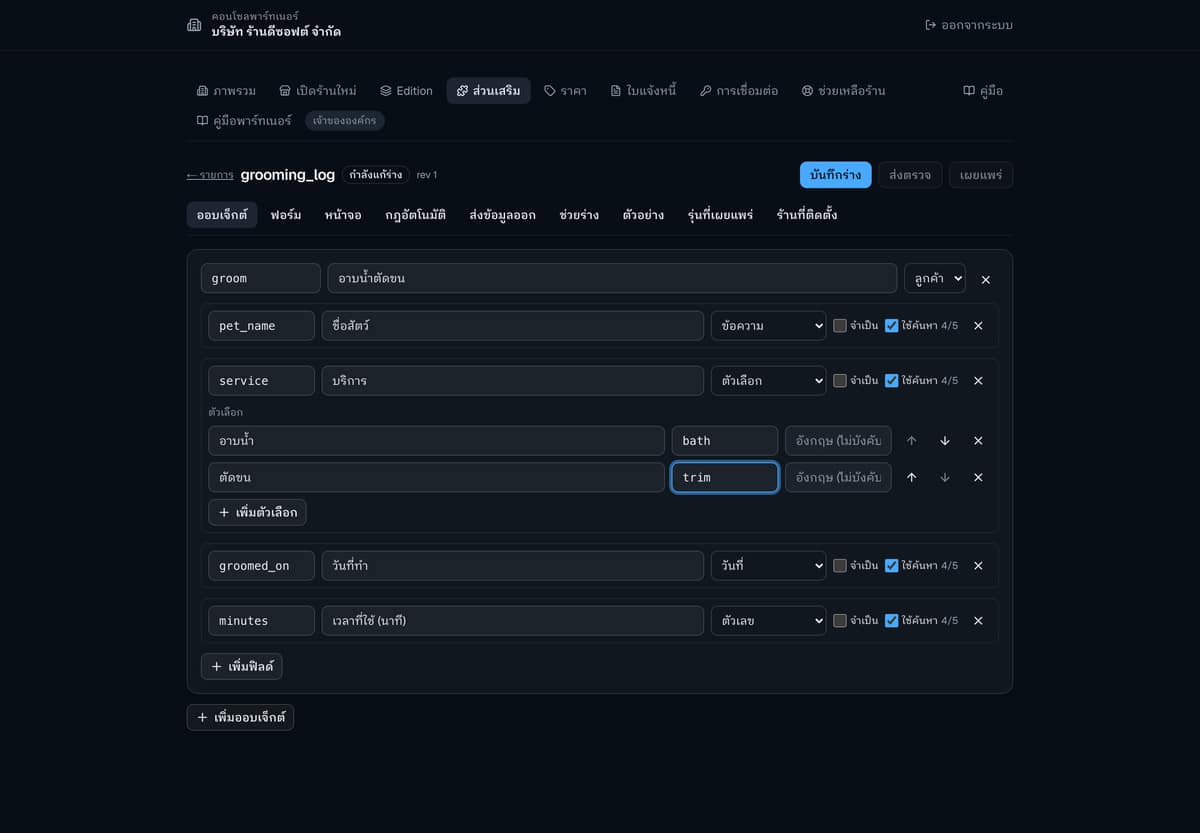
- Add your own object, for example a grooming record linked to the customer, with pet name, service, date and minutes.
- Tick the search option on fields you filter by or that rules count days from. If something must be fixed, a red bar says so at once.
- All of this data belongs to the shop, not the partner.
Automatic rules

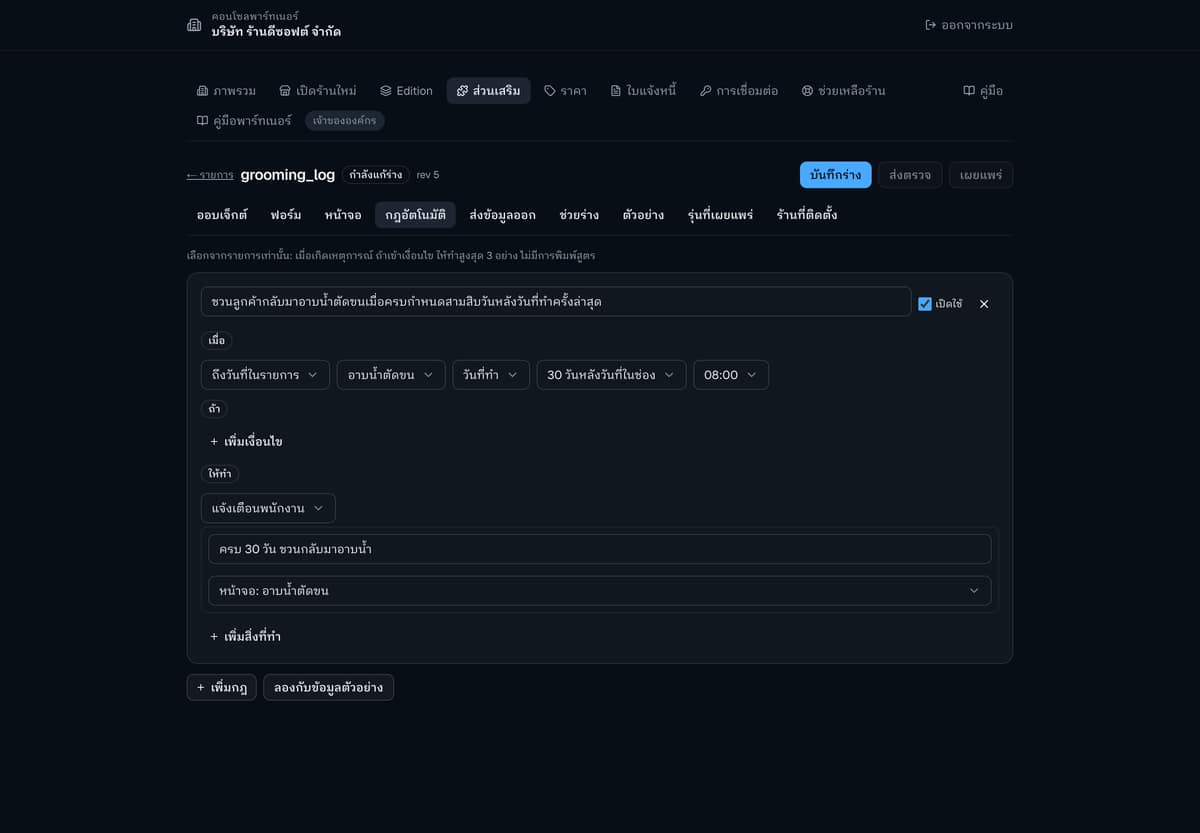
- Build a rule with the form "when... if... do...", no code needed.
- This example counts from the grooming date. The days box says before or after that date; this picture has "30 days after the date in the field", so the shop invites the customer back 30 days after grooming. To remind before a date, pick a "... days before the date in the field" option.
- You only pick from lists: up to 3 actions per rule and no formulas to type.
Try the rule before it goes live

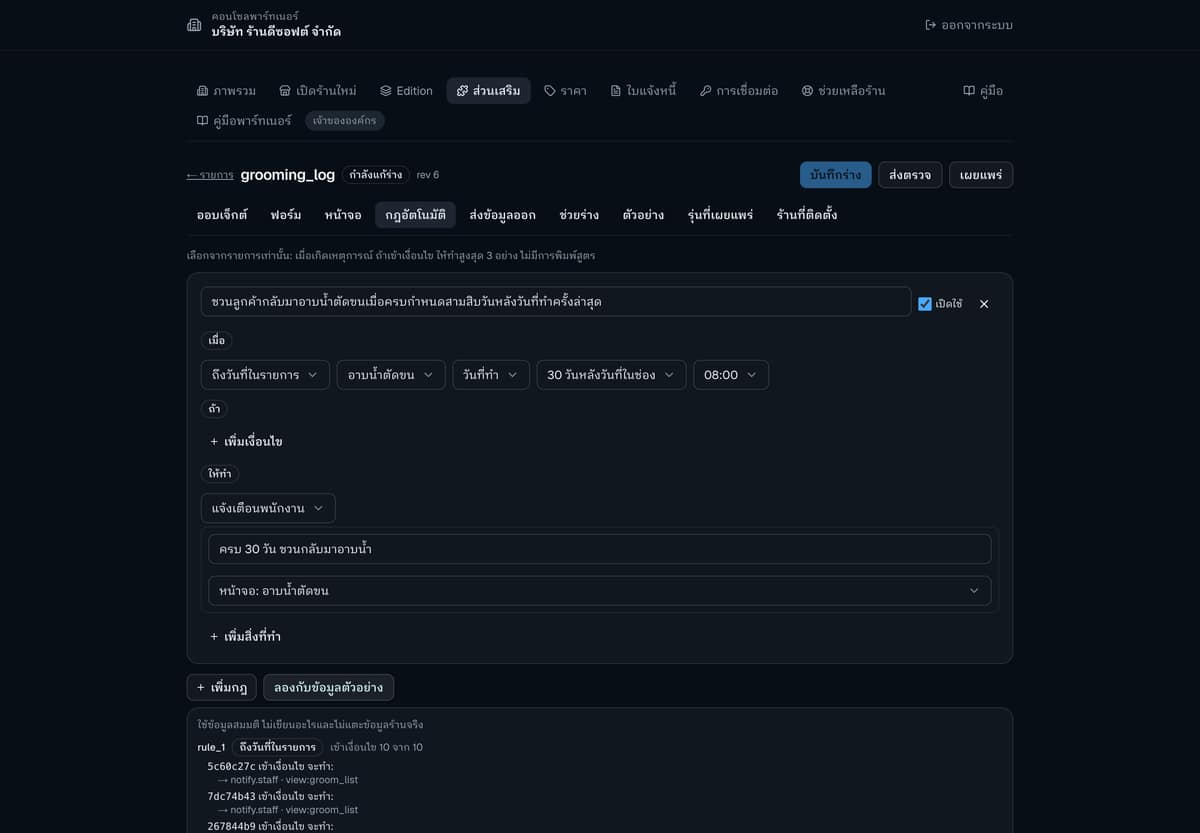
- The try-with-sample-data button uses made-up data; it writes nothing and never touches a real shop.
- It shows how many rows match and what the rule would do for each one.
- Fix the rule until the result matches what you meant, then move on.
Choose what is sent out

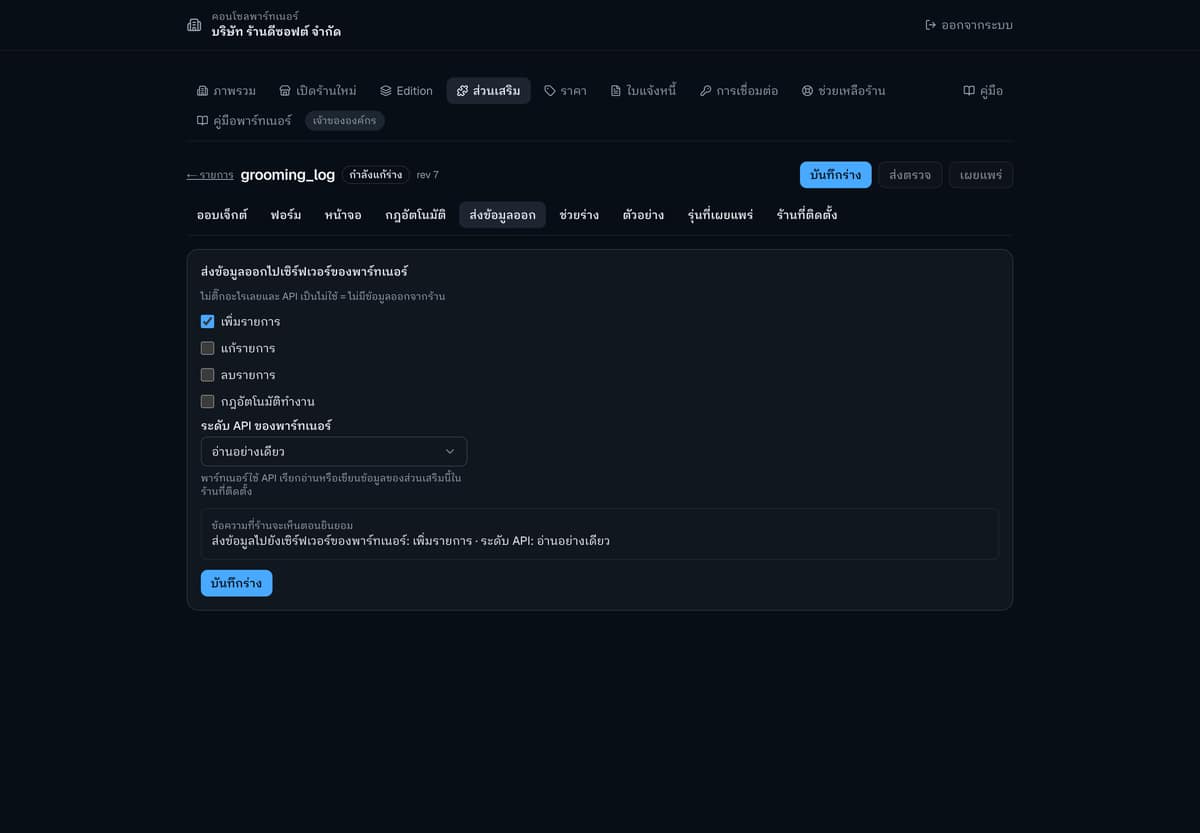
- Tick the events sent to your server and choose the API level. Tick nothing and no data leaves the shop.
- The system previews the text the shop will see when it consents.
- If the scope grows, the shop must consent again.
Submit for SMEDNA review

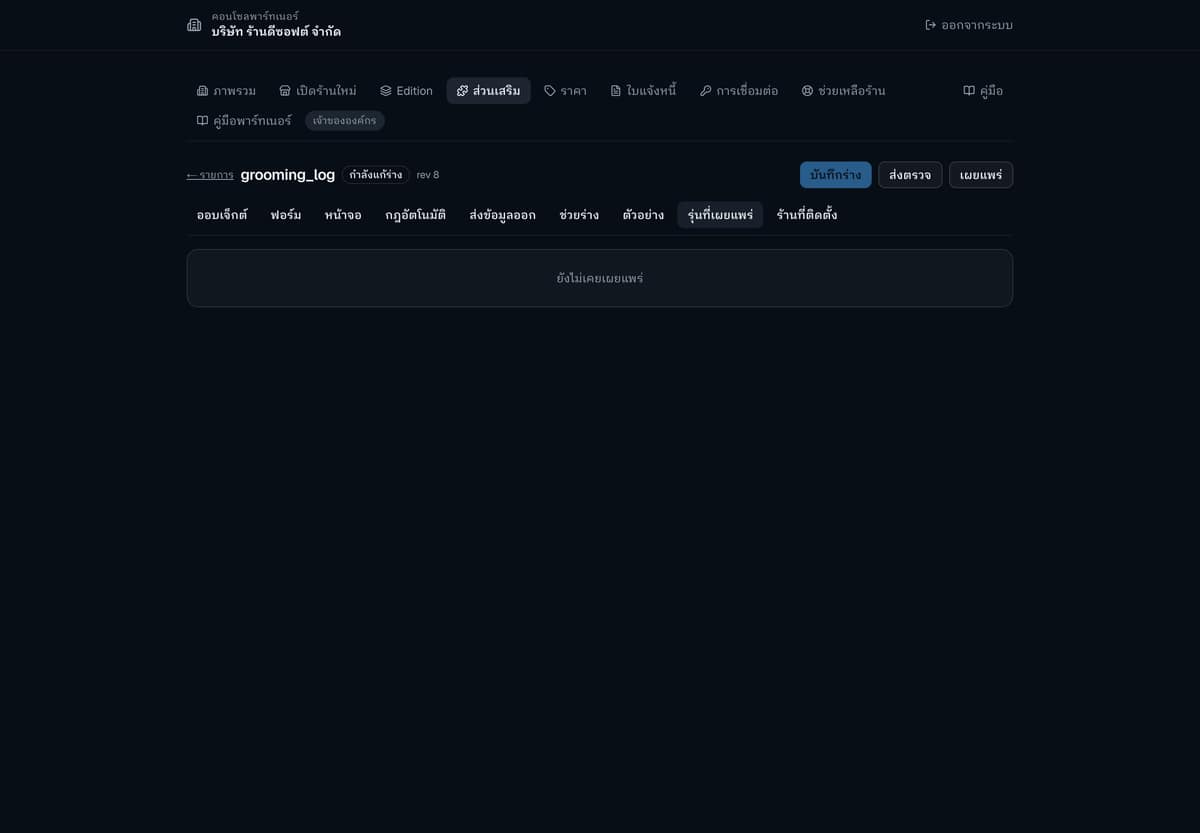
- Press submit for review, then publish, at the top right.
- The published revision joins the SMEDNA review queue. This picture is from before, so the published revisions tab is still empty.
- The shop keeps using the earlier revision while it waits.
Platform review and approval
Every extension revision is reviewed by the SMEDNA team before a shop can install it.
The SMEDNA review page

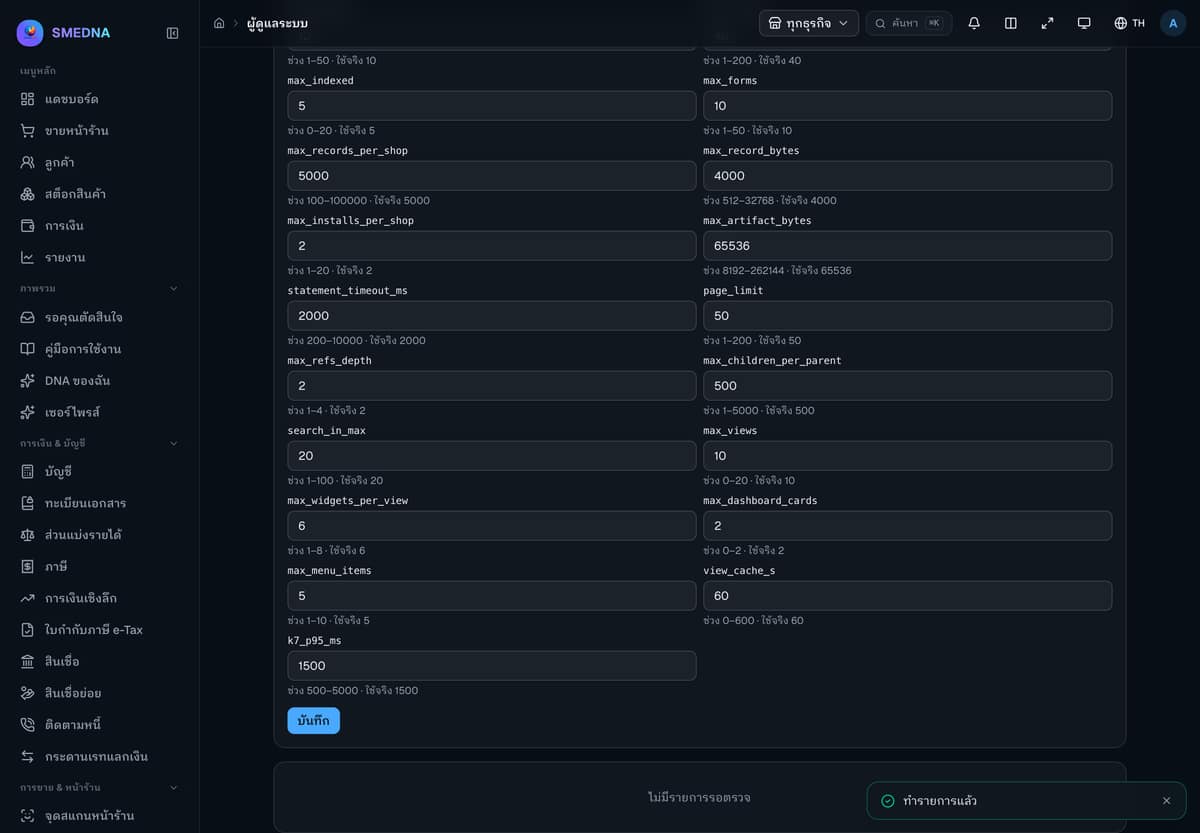
- SMEDNA reviews submitted revisions on this page. Above the queue are the limits set for every extension; each box shows the allowed range and the value in use.
- Each revision waiting for review is a card in the queue, with approve, reject and suspend buttons. This picture was taken after approving, so the queue says there is nothing to review.
- Once approved, shops can install the revision. If it is rejected, the partner fixes it and submits again.
What the shop sees and uses
Before installing, the shop owner sees what the extension stores, what it does by itself and what it sends out, then sees the result in the shop's own pages.
What the shop sees before installing

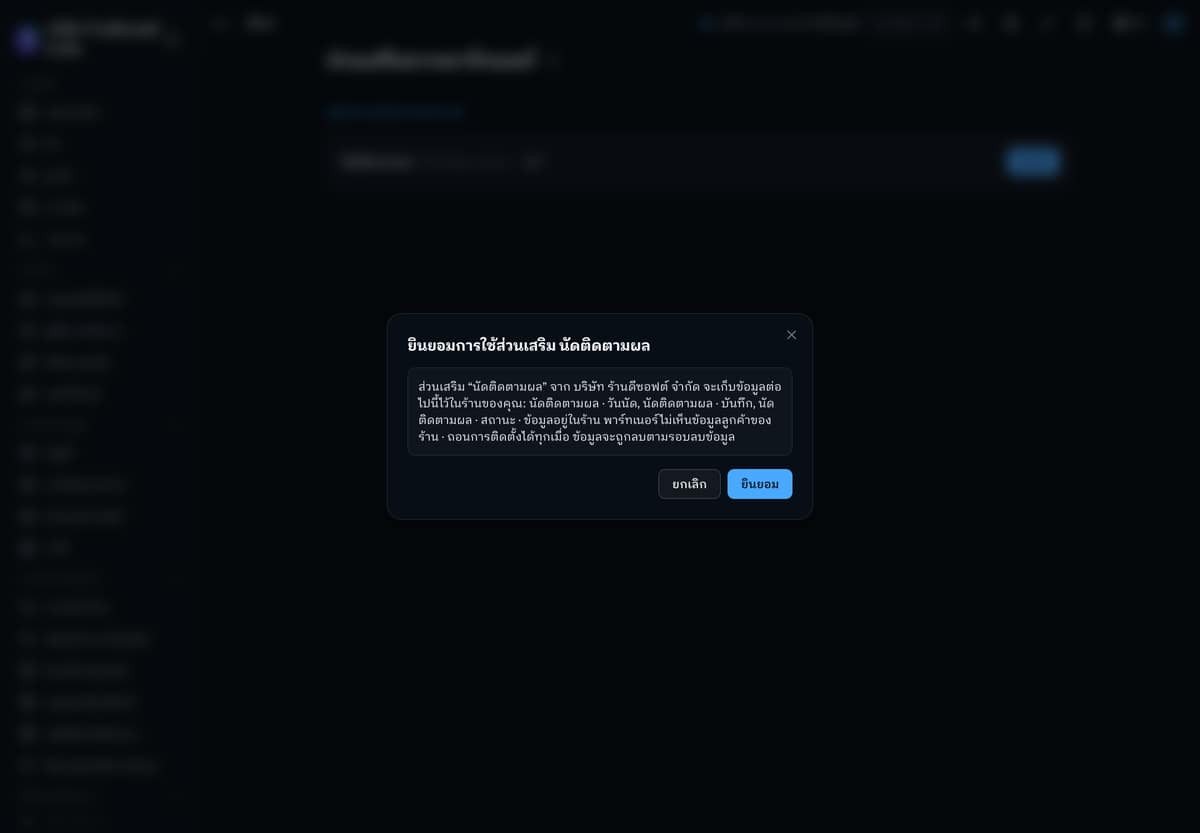
- The consent dialog says what the extension will keep in the shop and what it sends out, if anything.
- This extension sends nothing out, so the dialog says the partner cannot see the shop's customer data.
- The shop can uninstall at any time; the data is then deleted on the normal deletion cycle.
See the result on the dashboard

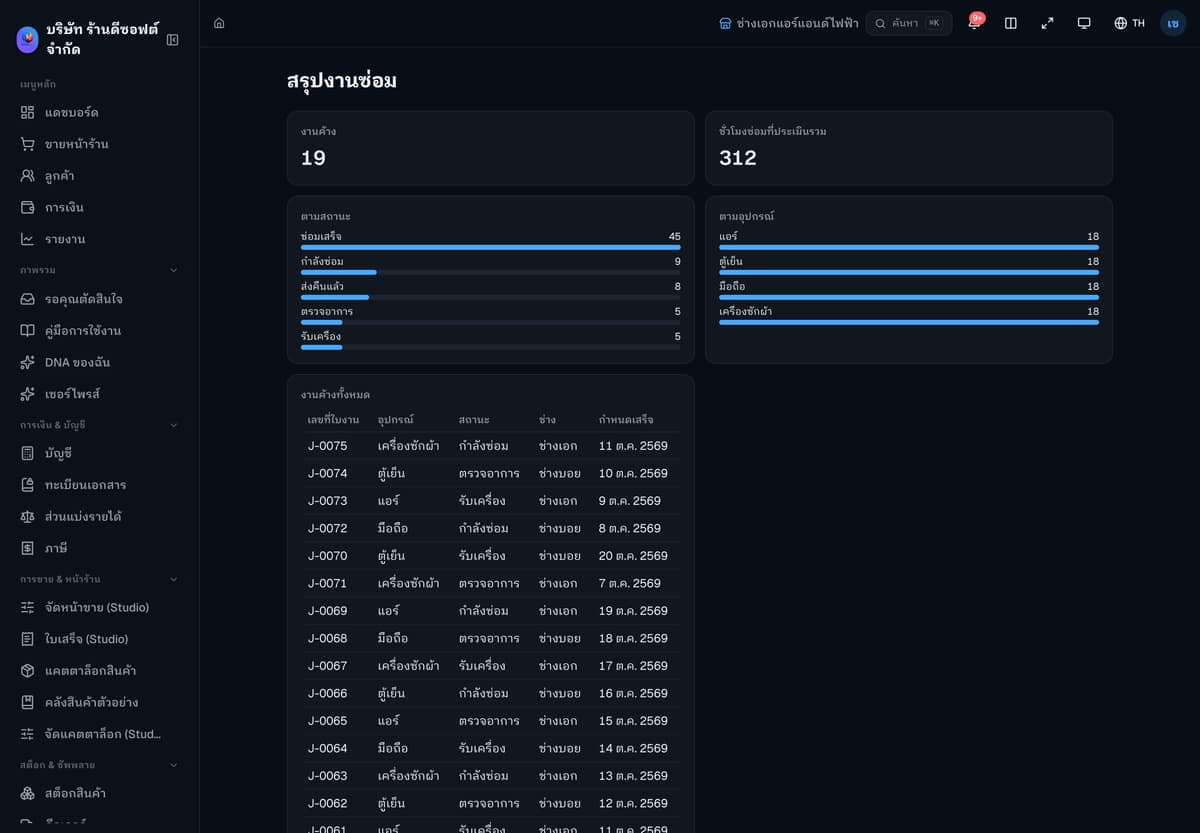
- The dashboard sums up open jobs, estimated hours and jobs by status.
- The numbers are counted from the shop's own data.
- Staff can view it within the permissions the shop gives.
The shop's rules page

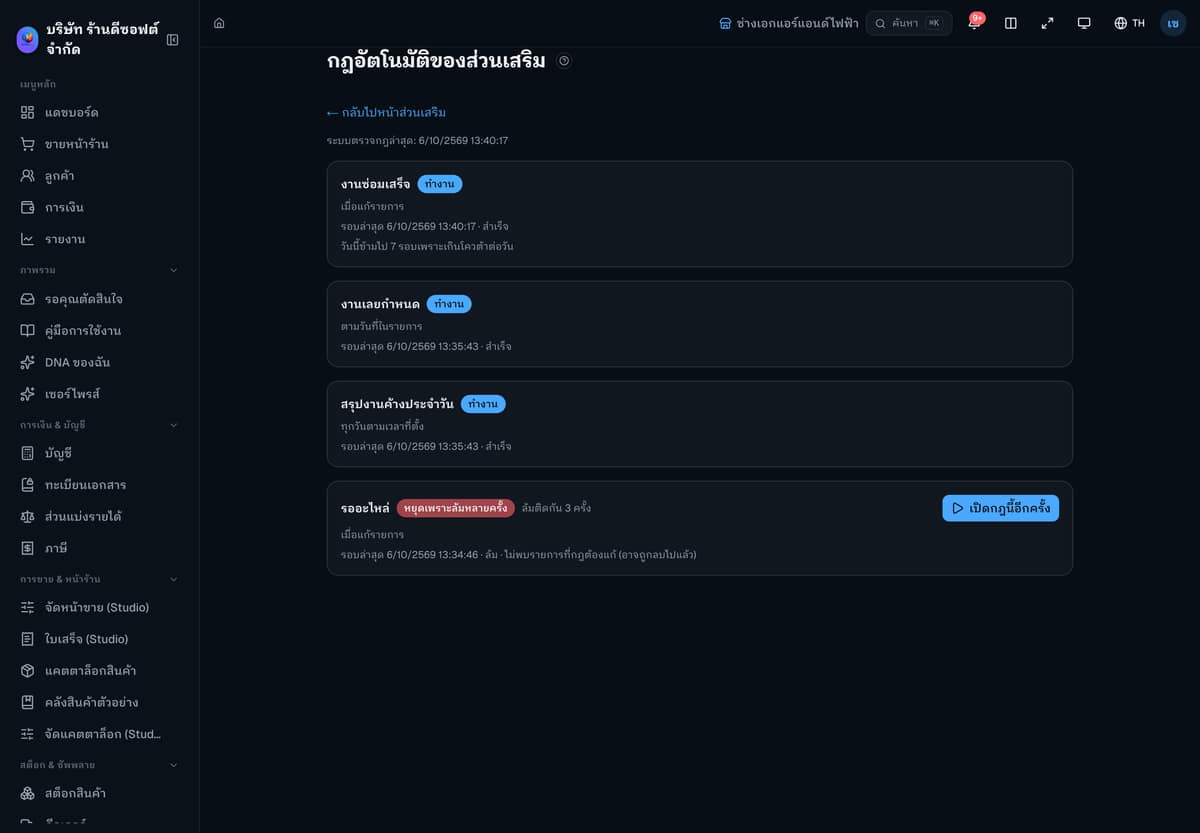
- The shop sees which rules run, which stopped after repeated failures, and how many runs the daily quota skipped today.
- A stopped rule gives the reason in plain words, for example that the record it should change was not found.
- The shop owner can switch a stopped rule back on.
Vaccinations coming up

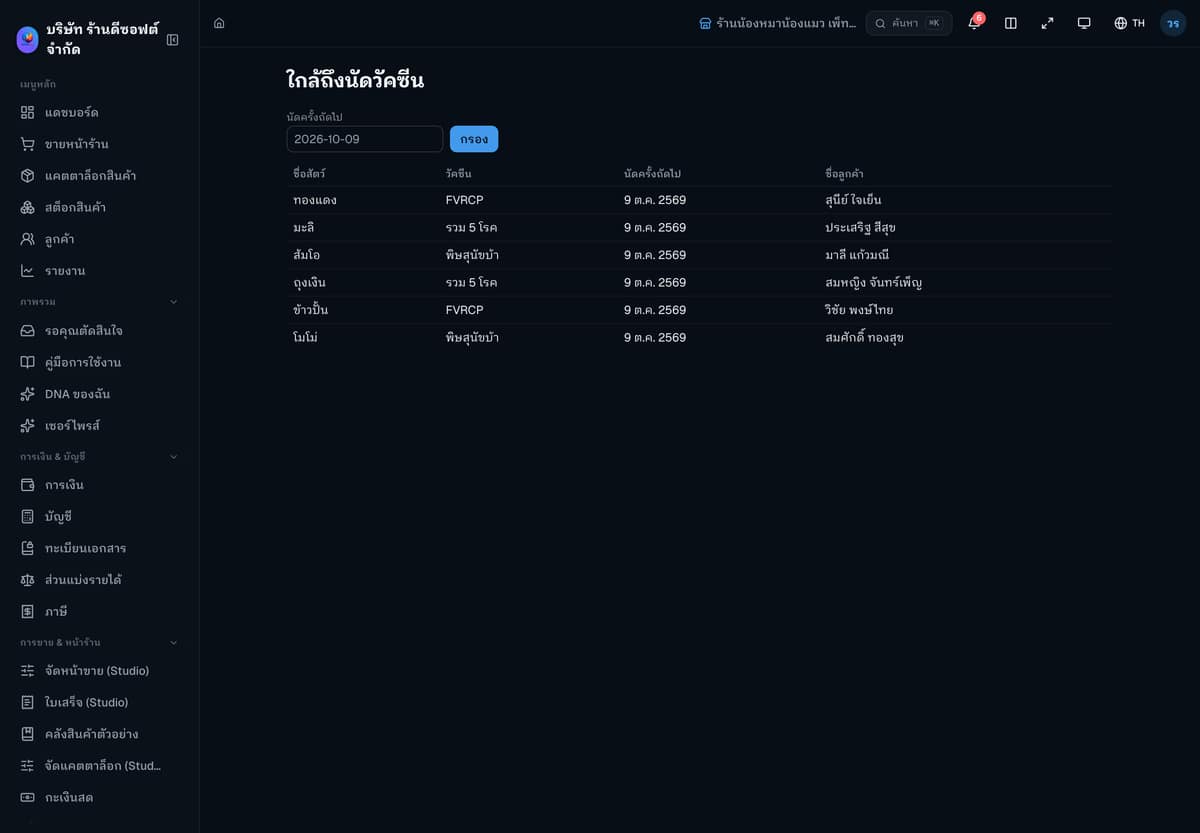
- The reminder rule tells the team by itself 3 days before each appointment.
- The list filters by appointment date and shows the pet, the vaccine and the customer.
- The shop does not have to note or chase them by hand.
The partner follows the results
After a shop installs, the partner can read rule run history and webhook deliveries, only within the scope the shop consented to.
Detailed rule run history

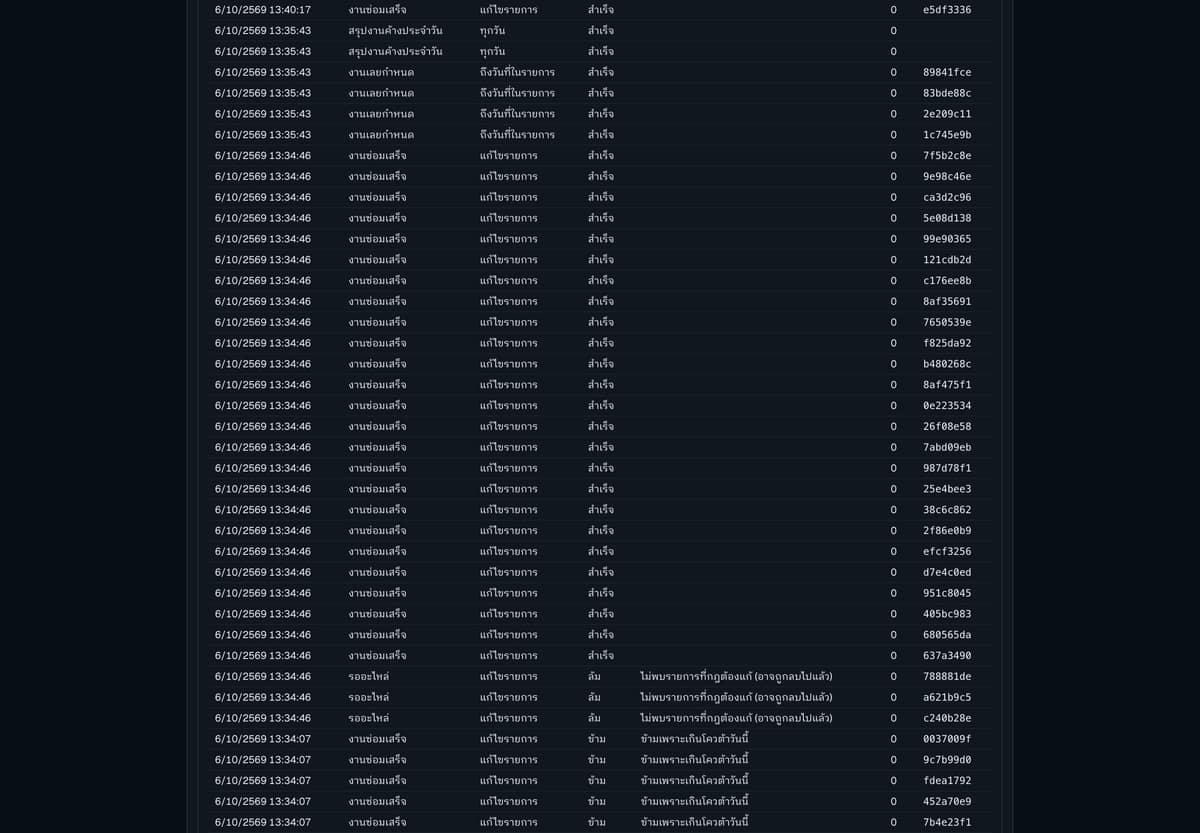
- If the shop consented to export, the partner sees the time, rule name, trigger event, status, the reason for any failed or skipped run, and a short record id.
- Customer names and record contents are never shown.
- Use it to find out why a rule failed.
A shop that did not consent shows totals only

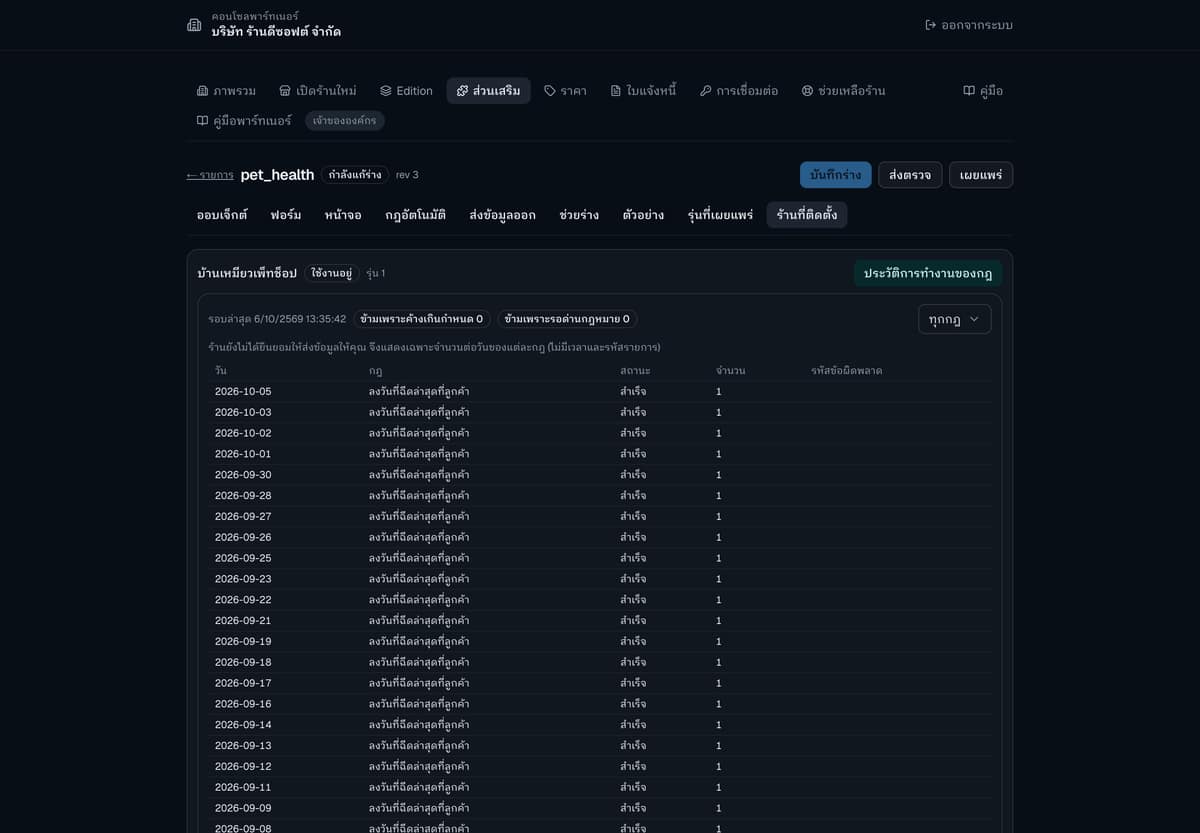
- If the shop has not consented to export, the partner sees only daily totals.
- No times and no record ids.
- The shop sets this boundary.
Webhook endpoint and delivery status

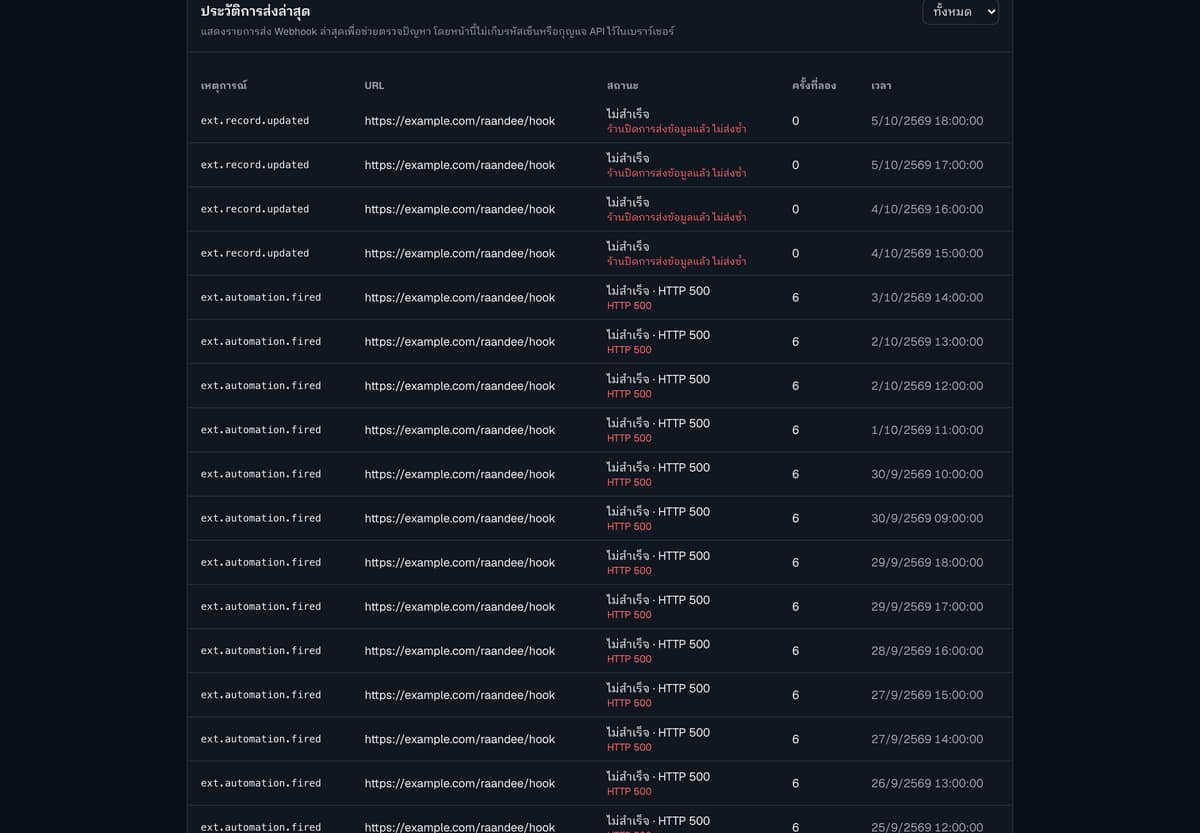
- The “Recent deliveries” table on the integrations page shows the result of each delivery, for example “Delivered · HTTP 200” or “Failed · HTTP 500”, with the number of attempts, and you can filter it by status. If the shop has closed data sending for the add-on, the row says failed with the reason, and the system does not send and does not retry.
- Use the test button after you fix the endpoint, and rotate the signing secret when needed.
- Verify the signature of every request at your endpoint; chapter 8 of the full guide has an example.
Consent again when the scope grows

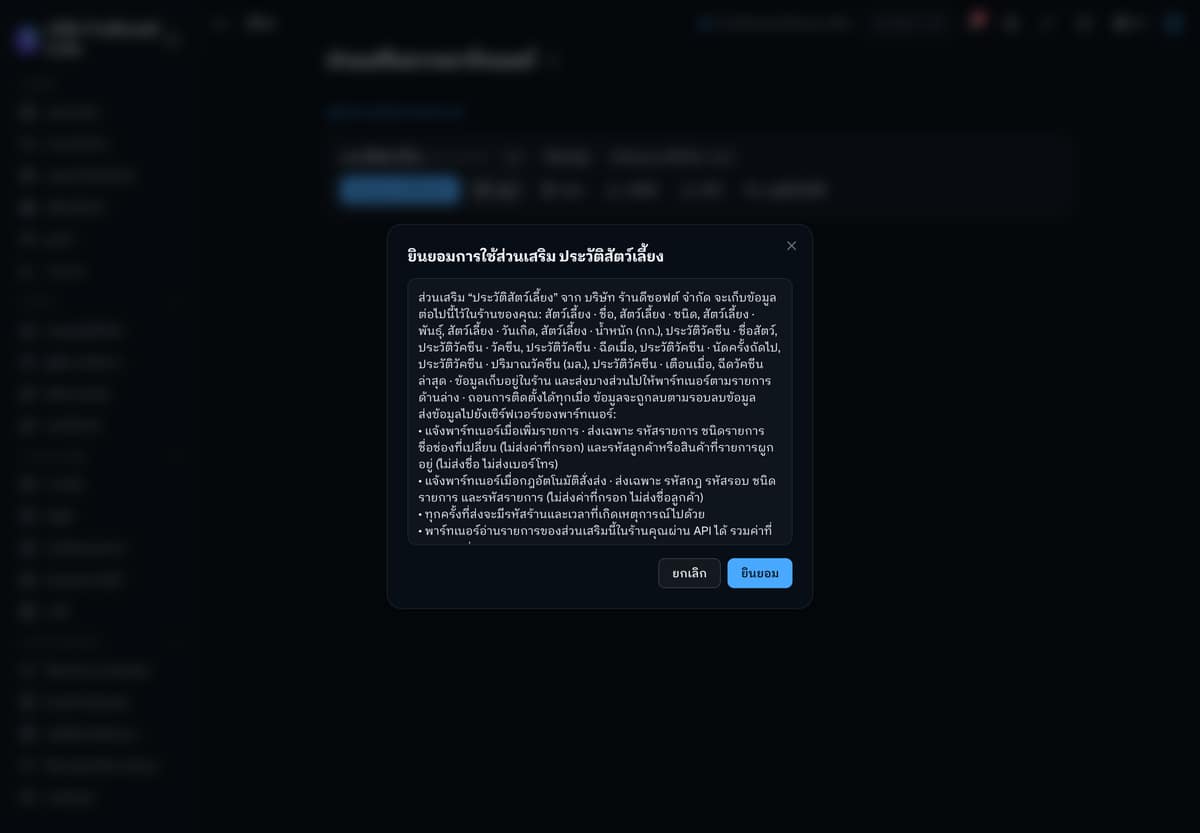
- When a new revision exports more data, the shop sees the new lines on the consent page.
- The installed extension keeps running the old revision until the shop consents.
- The dialog says plainly what is sent and what is not: no field values, names or phone numbers.